
Midrate FX Support
Help, troubleshooting, and contact options for Midrate FX.
Quick troubleshooting
Common fixes.
"Could not update rates. Showing the last saved rates."
Midrate FX couldn't reach the rate server: no connection, or no answer within 10 seconds. Conversions keep working with the rates saved on your phone, and the line at the bottom ("rates from … · checked …") says how old they are. When you're back online, tap the ↻ icon beside that line; the message goes away once an update works.
"Connect once to download rates"
The first time you open Midrate FX it needs a connection to download rates. Turn on Wi‑Fi or mobile data and tap ↻. After that, rates stay on your phone and the converter works offline.
Tapping ↻ didn't change the rates
Rates are published once an hour and reach the app within a few minutes after the hour. Tapping ↻ says "checking…", then "new rates" or "still the latest" for a few seconds; "still the latest" means nothing newer has been published yet. The "rates from" time is when the current rates were published. Pulling the list down doesn't refresh; use ↻.
A currency shows "No rate"
The rates saved on your phone don't include it yet, usually because you added it while offline. Connect and tap ↻.
My currencies are gone on a new phone
Your list is kept only on this iPhone and isn't part of iCloud or computer backups, so a new phone or a reinstall starts with currencies for your Region. Add yours again with "+ Add currency". Updating the app keeps your list.
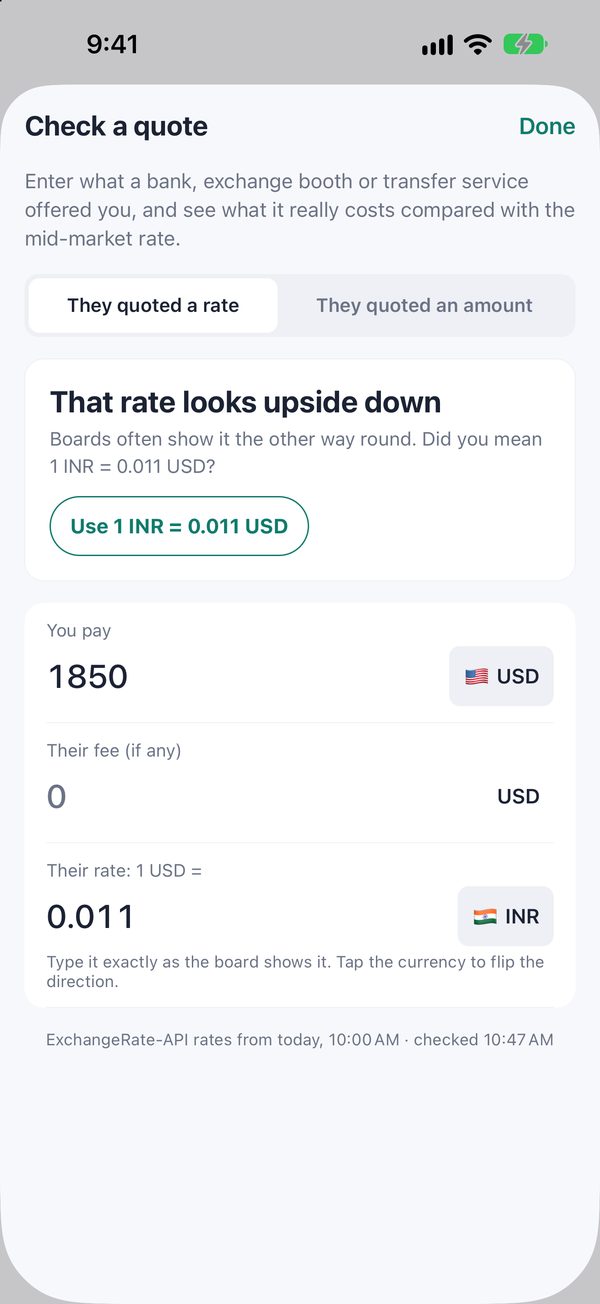
Check a quote: "That rate looks upside down"
Exchange boards often show the rate the other way round. Tap the "Use 1 … = …" button to flip it, or tap the currency beside the rate to change the direction yourself.
Check a quote: "Check this quote"
The numbers would mean a cost of more than half the amount, which no real quote has. Check the amounts, the fee, and which currency you pay and which you get.
A trend line is missing
A line needs at least five days of history for that pair, so a newly added currency gets its line after the next history download (within a few hours, when you're online). Lines are also hidden at the largest text sizes and while Edit list is open.
I can't remove a currency
The starting currency can't be removed: tap another currency to make it the start first. Midrate FX also keeps at least two currencies ("Keep at least two currencies.").
Still stuck?
Close Midrate FX completely and open it again. If that doesn’t help, update iOS (Settings → General → Software Update), then email us.
How to use
Getting the most out of Midrate FX.
Type an amount
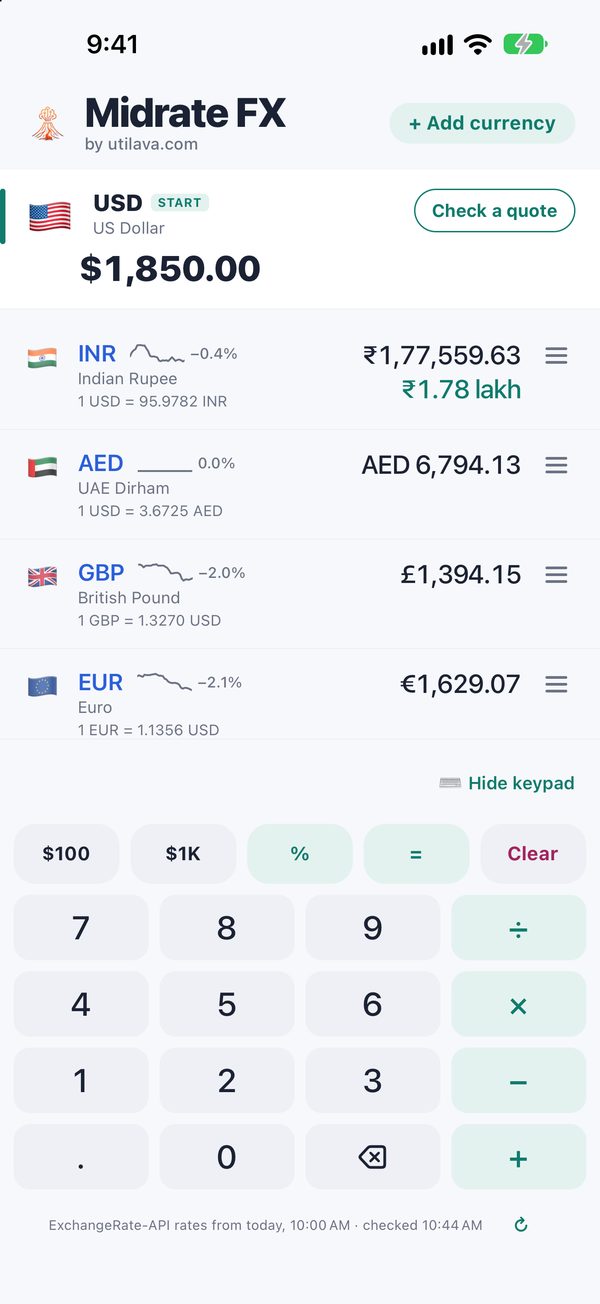
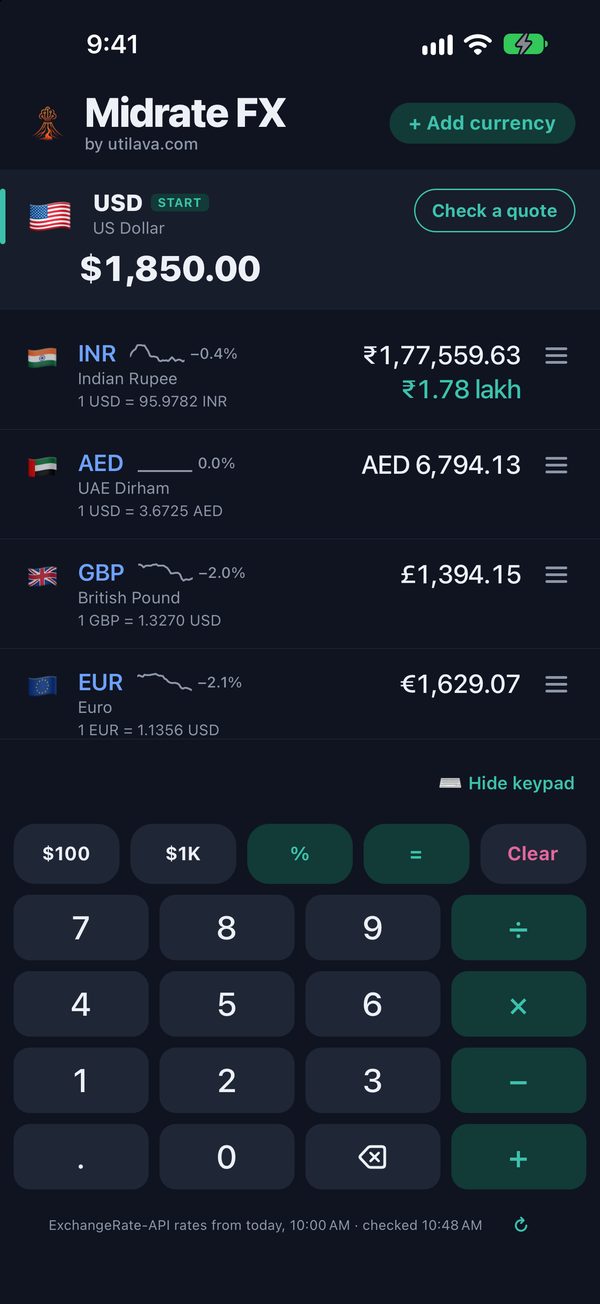
Use the keypad to type into the highlighted "START" row. Every other currency updates as you type. The first digit replaces the amount on screen. To add a tip and then split a bill, type the tip, tap =, then divide (212 + 15% = ÷ 5).
Starts with your currency
The first time you open Midrate FX, it starts with a currency that makes sense for your device's region. This uses your Region setting, never your location.
Switch your starting currency
Tap any other currency in the list to make it your new starting currency. It swaps places with the old one, so the rest of your list stays put, and switching back gives you the exact amount you typed.
Reorder currencies
Drag the ☰ handle on a row to move it up or down the list, or tap "Edit list" below your currencies for Move up and Move down buttons.
Remove a currency
Swipe a row left and tap Remove, or use "Edit list". If you change your mind, tap Undo in the bar that appears.
Add a currency
Tap "+ Add currency" at the top of the screen. Search by name, code or country, and add as many as you like before tapping Done. New currencies go at the end of your list.
Show more currencies
Tap "Hide keypad" above the keys to make more room for currencies. Tap "Show keypad" to resume typing. Your amount stays unchanged.
Refresh exchange rates
Midrate FX checks for new rates when you open it or come back to it, if it last checked more than 10 minutes ago. To check now, tap the ↻ icon at the bottom of the screen: it says "checking…", then "new rates" or "still the latest". The line beside it shows when the rates were published and when the app last checked.
Check a quote
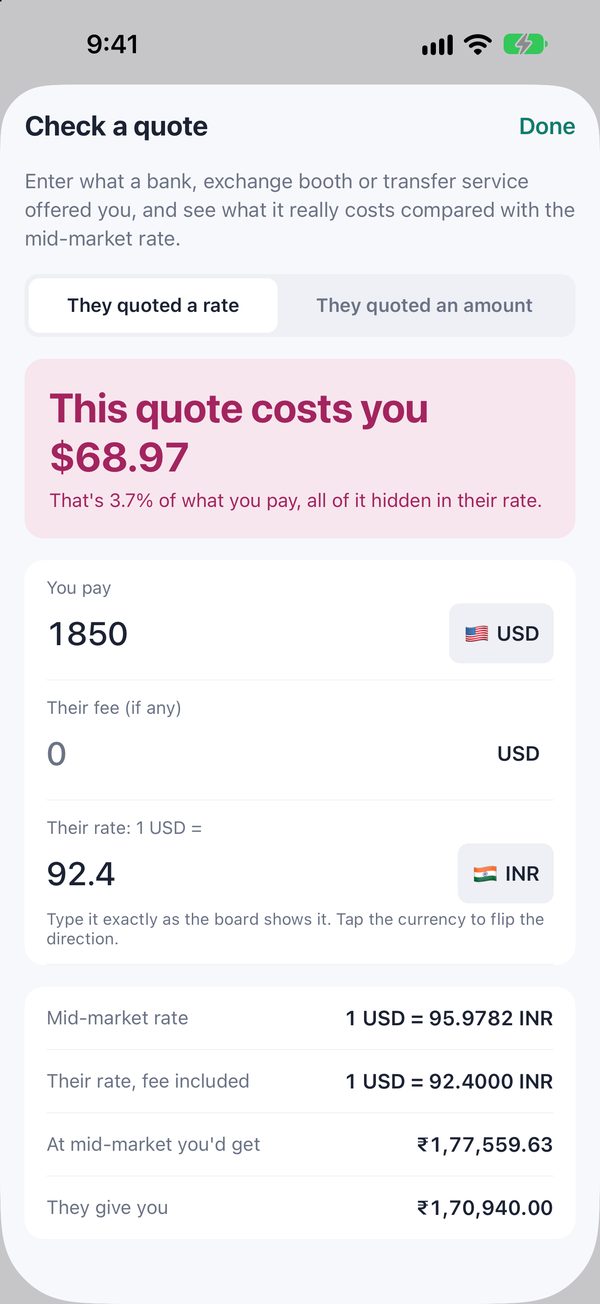
Tap "Check a quote" on the starting currency. Choose whether they quoted a rate or an amount, type it exactly as the bank or booth shows it, and add any fee. Midrate FX shows what it costs you against the mid-market rate. If the rate looks upside down, tap the suggestion to flip it.
Share a checked quote
Once Check a quote shows what a quote costs you, tap "Share this quote". Midrate FX makes a picture of it on your phone, with what it cost you, what you paid and received, their rate against the mid-market rate, and the rate's time, then opens the share sheet so you choose where it goes. Nothing is uploaded to us.
30-day trends
The small line beside each currency shows how it has moved against your starting currency over the last 30 days, with the change in percent.
Large text
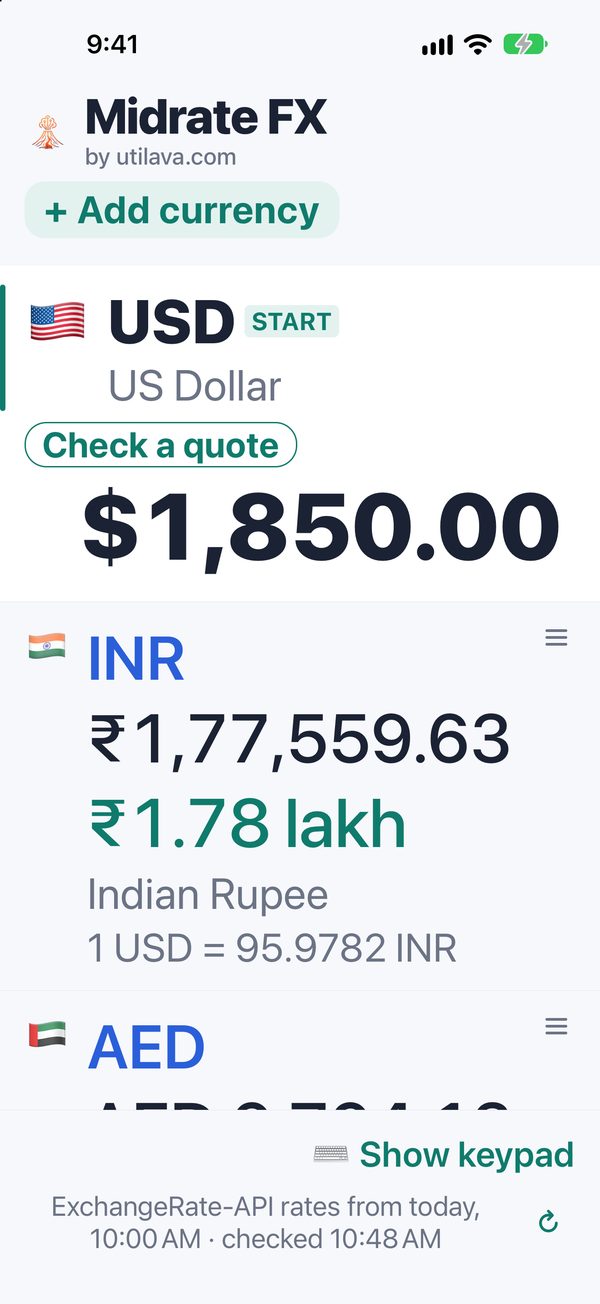
At the largest text sizes the starting currency scrolls with the list and the keypad starts hidden, so amounts are never cut off. A line above the keypad shows what you typed and the result.
App screenshots
The converter, Check a quote, large text and dark mode in Midrate FX 2.0.
Contact
How to reach us.
Email support@utilava.com for support requests, bug reports and feedback; we usually reply within one business day. You can also use the Contact page.
Include your device model, iOS version, and what steps led to the issue.
Data & privacy
What we collect.
Midrate FX doesn’t collect personal information. Your amounts and currency choices are stored only on your device, and there are no accounts, ads, or analytics. A quote you share as a picture is made on your phone and goes only where you send it.
Your first starting currency is chosen using your device's Region setting (Settings → General → Language & Region), a locale preference, not your location. Midrate FX never requests location access, and your region is never sent anywhere.
For full details, see the Midrate FX section of our Privacy Policy.